Lab 4: SPI Testing
In this lab, you will wire up the USB-to-SPI adapter, reset button, and debug output so you can test the SPI interface. Once we know the SPI interface works we can try testing the actual accelerator in the next lab!
1. Signal I/O Routing
In the previous lab, we connected the following signal input pins to ground:
- reset
- cs, sclk, mosi
- debug_mode
- gp0, gp1
We left the following signal output pins unconnected:
- miso
- debug_out
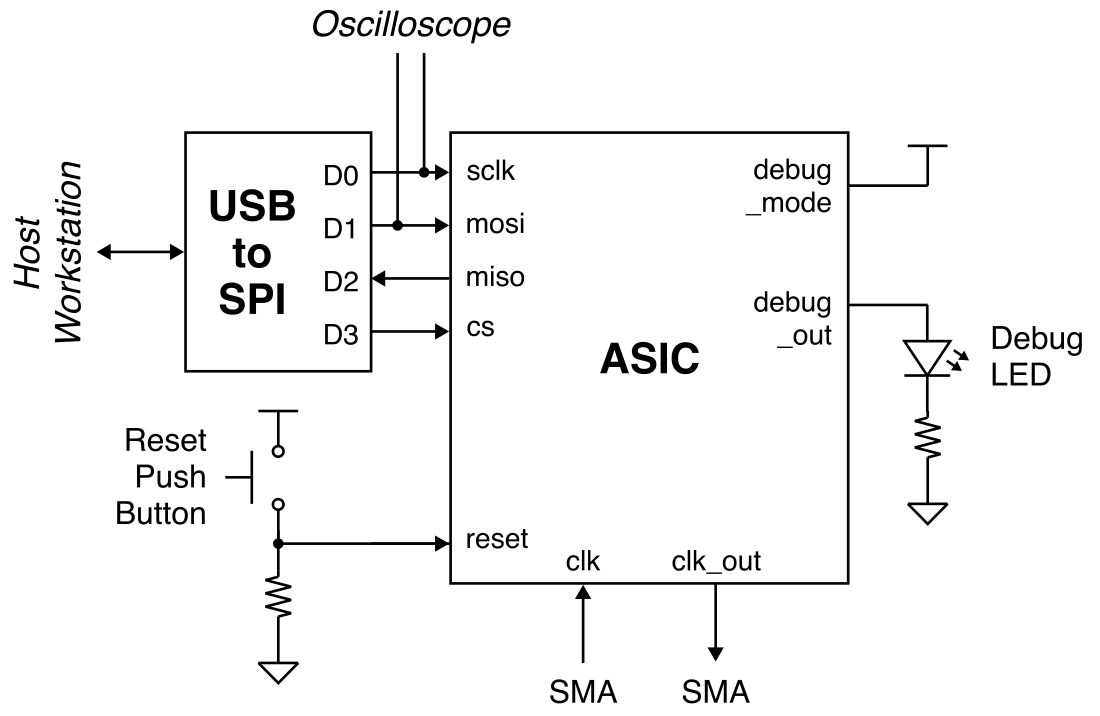
We now need to connect CS, SCLK, MOSI, and MISO to the USB-to-SPI adapter, connect the reset pin to a push button, connect the debug mode input to 3.3V, and connect the debug out to an LED. You should leave debug gp0 and gp1 connected to ground.
As a reminder, here is the spreadsheet which maps the chip pin out to the pin numbers on the breadboard:
Here is a system-level diagram of the signal I/O routing for this lab:
1.1. Wire SPI
We will be using a USB-to-SPI adapter which enables us to communicate with your chip from the workstation. This is the same adapter we used in Lab 1 on FPGA emulation.
Remove the USB-to-SPI adapter from your component box and find a good spot for it on your breadboard. You will want to place it at the edge on the right-side of your breadboard so you can easily insert the USB-C cable.
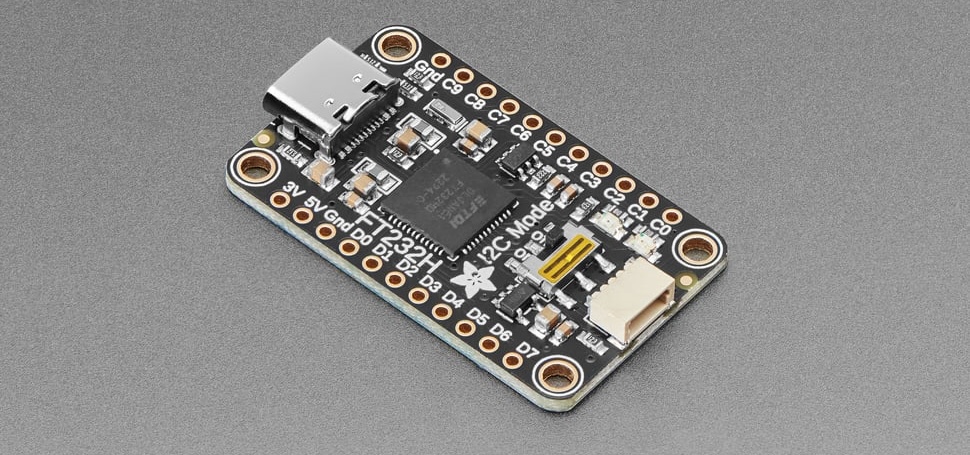
Then connect the ground pin of the USB-to-SPI adapter to the ground rail on your breadboard. Do NOT connect the 3V pin on the USB-to-SPI adapter; only connect the ground pin! You need to connect the SPI pins to the USB-to-SPI adapter as follows:
- SCLK connects to D0 on USB-to-SPI adapter
- MOSI connects to D1 on USB-to-SPI adapter
- MISO connects to D2 on USB-to-SPI adapter
- CS connects to D3 on USB-to-SPI adapter
Cut long wires to make these connections. Try to make your wires flat against the breadboard so they are nice and tidy.
1.2. Wire Reset
Our chip uses an active-high reset so we will need a push-button with a pull-down resistor to control the reset input for our chip. When the push-button is not pressed the resistor will pull down the reset pin to 0V. When you press the push-button, we will pull up the reset pin to 3.3V.
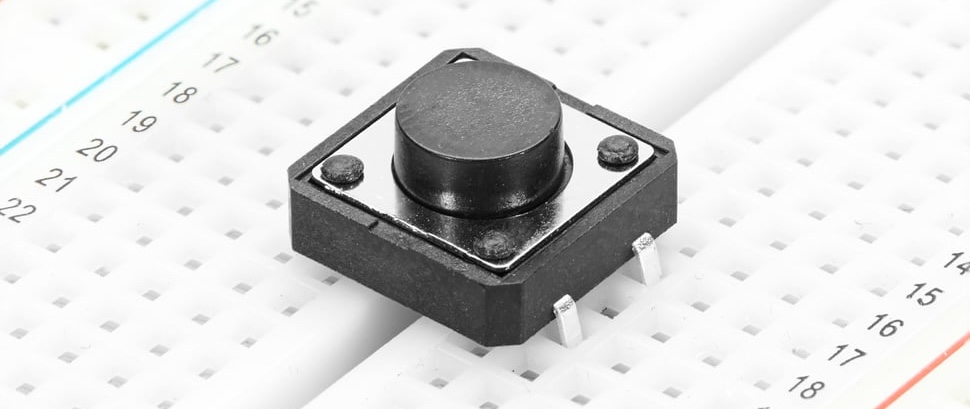
Remove the push-button from your component box and find a good spot for it on your breadboard.
The following figure shows how the pins of the push button are connected within the switch. You should either use A and C or B and D.
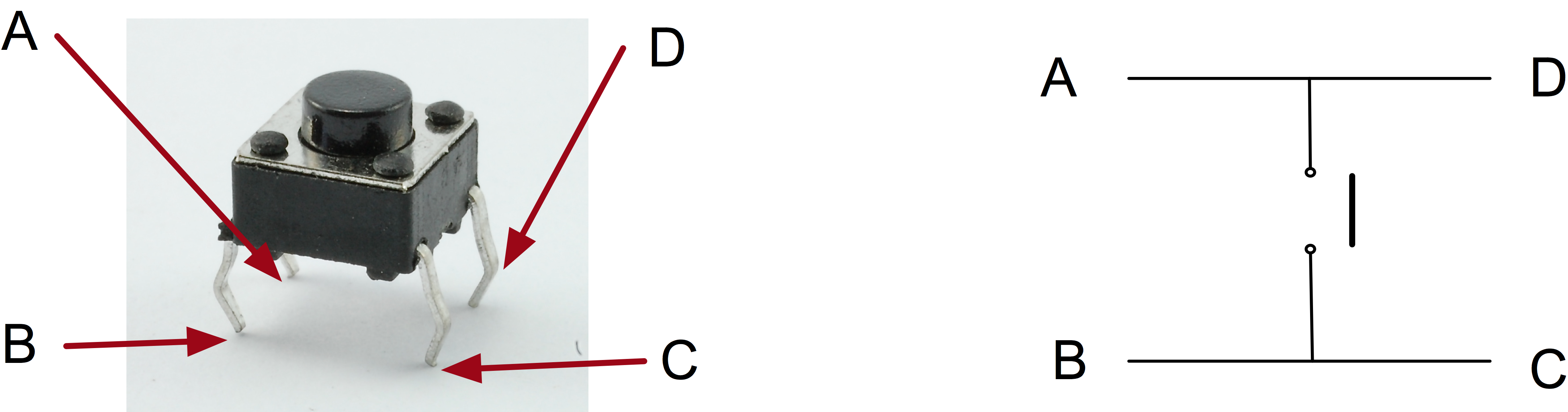
Connect one pin on the push button to the I/O VDD rail and the other pin to a 1kOhm resistor which in turn connects to ground. Then connect the node between the push button and the resistor to the reset pin of the chip.
1.3. Wire Debug
Our chip uses an active-high debug mode input. In this lab, our chip will always be in debug mode so connect the debug mode input pin to the I/O VDD rail. Then connect the debug output to an LED in series with a 1kOhm resistor which in turn connects to ground.
2. SPI Testing
We are now ready to test the SPI interface on your chip using debug mode. Use a USB-C cable to connect the SPI adapter on the breadboard to the top-left USB port of the workstation. You must use the top-left USB port of the workstation; any other port will not work! Then use the other USB-C cable to connect the chip tester board to the workstation.
Let's setup the oscilloscope so we can look at the SPI transactions. Connect the two oscilloscope primary probe points to the SCLK and MOSI pins of the SPI interface. Be sure also to connect the ground probe points to ground.
- Turn on the oscilloscope
- Press Default Setup
- Press 2 to turn on Channel 2
2.1. Clone Repo
We now need to get the ece6745-check-xmsgs script from ecelinux onto
the workstation. This requires multiple steps.
-
Step 1. Click Microsoft Edge on the desktop to open a web-browser on the workstation to log into GitHub and then find your repository
-
Step 2. Start PowerShell by clicking the Start menu then searching for Windows PowerShell
-
Step 3. Use the following command to change to your home directory on the workstation in the lab (where
netidis your Cornell NetID)
- Step 4. Clone your repo onto the workstation by using this command in
PowerShell (where
netidis your Cornell NetID, notice we are using https!):
-
Step 5. In the Connect to GitHub pop-up, click Sign in with your browser
-
Step 6. You may be asked for your GitHub username again and you may be asked to authorize the Git Credential Manager; click authorize git-ecosystem
-
Step 7. Change into your repo, checkout the tapeout branch, and using
treeon the workstation:
2.2. Using REPL
Change the clock frequency to 1MHz using the following steps:
- Press the Clk button
- Use the numbers and Dot button to enter 1
- Press the Enter button
- Press the Chip button
- Verify that the chip tester board clk/out and clk/in show 1MHz
Now start PowerShell by clicking the Start menu then searching for Windows PowerShell. Then start Python and use the following commands to exchange SPI transactions with your chip. You should see the oscilloscope flicker.
% python
>>> from pyftdi.spi import *
>>> spi_controller = SpiController()
>>> spi_controller.configure('ftdi://ftdi:232h/1')
>>> spi = spi_controller.get_port(cs=0, freq=1000, mode=0)
>>> spi.exchange(0xe0_0000_0001.to_bytes(5),5,duplex=True).hex()
>>> spi.exchange(0x80_0000_0000.to_bytes(5),5,duplex=True).hex()
>>> spi.exchange(0xe0_0000_0000.to_bytes(5),5,duplex=True).hex()
>>> spi.exchange(0x80_0000_0000.to_bytes(5),5,duplex=True).hex()
Why are we using 0xe0_0000_0001? Recall that the top three bits in an SPI request correspond to the valid bit, the constant 1 bit, and the type field. So the first transaction writes accelerator register xr0 with the value 1.
Why are we using 0x80_0000_0000? Again that the top three bits in an SPI request correspond to the valid bit, the constant 1 bit, and the type field. So the second transaction is an invalid request; we are basically waiting for the response message.
So the above sequence writes xr0 with the value 1, then writes xr0 with the value 0. This should toggle the debug out pin (i.e., the LED).
Using the following steps to capture a waveform of the SPI packets on the oscilloscope.
- Rotate the Horizontal Scale knob counter clockwise to 20ms
- Continue to exchange SPI transactions (i.e., press up arrow key in PowerShell and then enter), see SPI packets flicker
- Rotate the Vertical Position knob of channel 2 counter-clock wise
- Continue to exchange SPI transactions ... position channel 2 below channel 1 using Vertical Position knob
- Rotate the Horizontal Position counter clockwise to move the signal to the left
- Continue exchange SPI transactions and adjust the vertical/horizontal position
- Rotate the Trigger Level knob clockwise until the trigger is about 1V higher than baseline voltage level
- Press Single
- Exchange an SPI transactions again to get a captured waveform
Now make sure reset is working as follows:
Then press the rest button which should turn off the debug LED.
2.3. Using Python Script
We have provided you with a Python program to make it easier to send
accelerator requests to the FPGA emulator and eventually your chip. In
PowerShell on the workstation, change into the xmsgs subdirectory and
then run the ece6745-check-xmsgs script.
You can use the --debug-mode command line option to write/read data
to/from the debug unit like this:
The script will likely not work because the default SPI SCLK frequency using this script is 1MHz. We cannot use a 1MHz chip clock to sample a 1MHz SCLK; the chip clock frequency needs to be ~6x the SCLK frequency. Go ahead and change the chip clock frequency to 10MHz and rerun the Python script.
% cd C:\Users\netid\project2-groupXX\xmsgs
% python ece6745-check-xmsgs --verbose --debug-mode 1
% python ece6745-check-xmsgs --verbose --debug-mode 0
% python ece6745-check-xmsgs --verbose --debug-mode 1
% python ece6745-check-xmsgs --verbose --debug-mode 0
% python ece6745-check-xmsgs --verbose --debug-mode 0xdeadbeef
Verify that the debug output LED is toggling. If this looks like it is working, then use 0xdeafbeef and change the clock frequency to 20Mhz, 30Mhz, 40Mhz, 50Mhz, 100Mhz, 150Mhz, and 200Mhz. Confirm the frequency counter shows the correct frequency and that the SPI responses are correct.
Huge Milestone!
If the SPI testing works then this means I/O VDD, core VDD, ground, clock, and your reset signal are all working and you can now get data in and out of the chip! Congratulations - we are making great progress!